Tutorial – Basics
This tutorial video explains the installation and the first steps in detail and in an easy-to-understand manner. Enjoy!
Chapters:
00:00 – Intro
00:30 – Introduction
00:40 – Foolproof Route Planning
01:12 – Installation
01:56 – User Interface
02:30 – Tracks and Routes
04:45 – Installing a Pro License
06:33 – nstallation on an Apple Mac M4
08:16 – Planning with City Names
09:40 – Export to BMW Navigator CRN
12:40 – Planning with Google Maps POIs
16:22 – Quick Route Planning
18:56 – Combining All Planning Options
20:45 – Route Editor
22:24 – Automatic Cache Saving
Overview
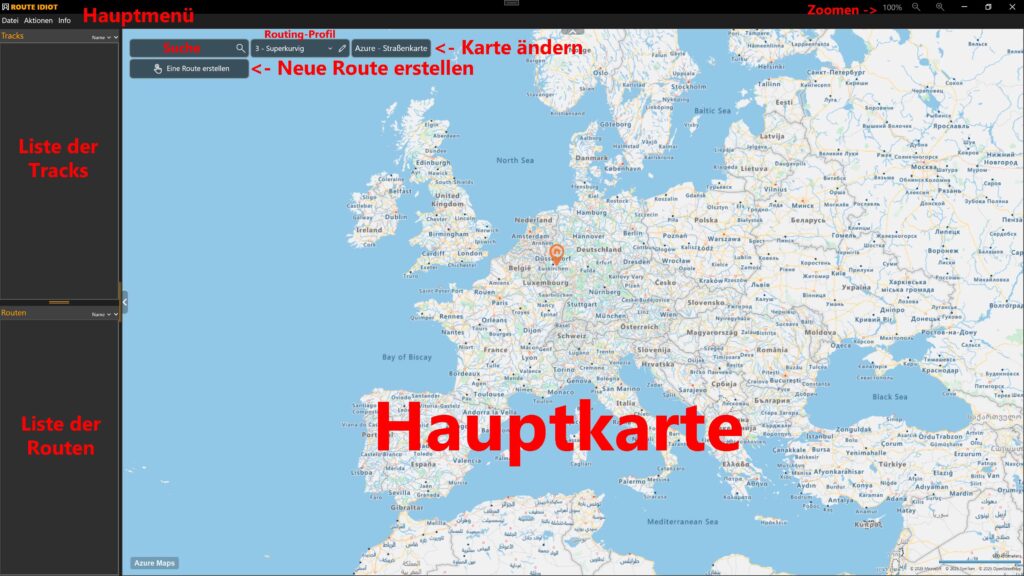
RouteIdiot is incredibly simple! There are lists of tracks and routes and a map, and that’s it. It couldn’t be simpler. To create a new route, click on Create a route and you’re ready to go.
Once the new route is complete, it is automatically added to the list of routes. You can select it with the small check mark. Once a route is selected, Export route is displayed. Clicking here opens the route export dialog. Here, you select the device you want to export to and click Export.
Because all apps and navigation systems can be different, there are different export methods. Different working practices are also taken into account. Users of navigation devices usually connect their devices to the computer via a USB cable. This works, for example, with:
- Garmin XT
- Garmin XT2
- Garmin Tread
- BMW/Garmin Navigator 4, 5, and 6
- BMW Connected Ride Navigator (CRN)
- TomTom Rider 400, 450, 500, 550
App users can use a cloud drive for export and later open the routes on their smartphone from the cloud drive. Supported are:
- Microsoft OneDrive
- Google Drive
- Apple iCloud Drive
Owners of the new BMW Connected Ride Navigator (CRN) can export their routes via OneDrive, for example, then open them on a smartphone (iOS or Android) and import them using the BMW Connected Ride app. As soon as the CRN has an internet connection, all imported routes will be immediately visible there.
Senic users can export directly to the Scenic cloud without any detours. All routes will then be immediately visible in the Scenic app.
Users of MRA, Kurviger, or Calimoto can open all routes directly from one of the three supported cloud drives. When exporting via cloud drive, multiple systems can be selected in parallel. For example, you can export to a Windows Surface, an iPhone, and an Android smartphone in parallel.
If your travel plans change while on the go, you can easily edit everything on a Windows Surface and export again.
Up to 10 parallel installations on a maximum of 10 private computers are supported.